


docs/user/services/volumes.md
title: Volumes description: Keep files across deploys and restarts.
A deploy can replace your service's containers. A volume is a folder that survives: whatever your service writes there is still there after deploys and restarts. Use one for uploads, a SQLite file or a database's data. Databases come with one.
Think of a volume as a disk plugged into one of your servers: every service that mounts it runs on that server.
Add a volume
- Open your environment and click Create, then Volume. Right-clicking the canvas works too.
- Enter a Name, like
uploads, and a Storage limit (GB). Names use lowercase letters, digits and hyphens. Anything else is converted, and the field shows the name it saves as. The storage limit is fixed once you deploy, so leave room to grow. Click Create volume. - Click the new volume, then Mount on a service. Pick the service, enter a Directory inside
its containers, like
/app/uploads, and click Mount. - Click Deploy.
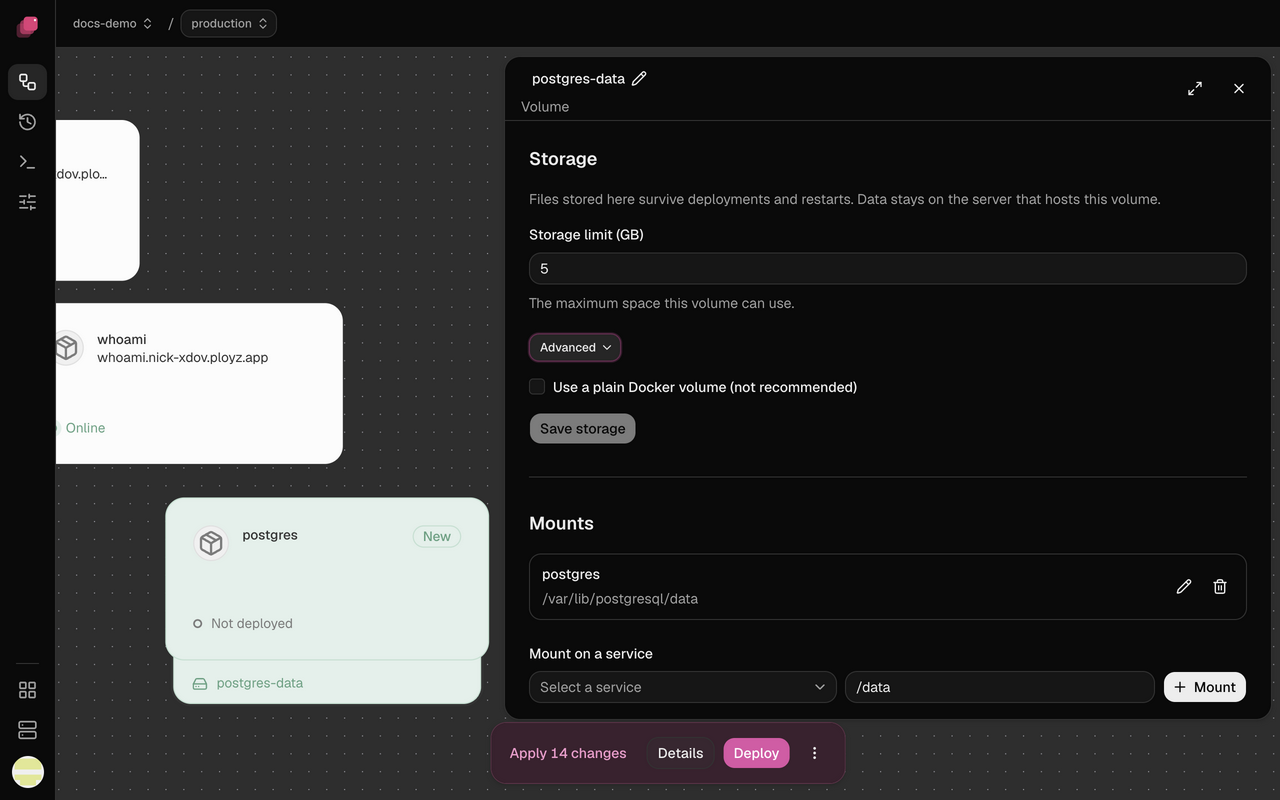
The volume shows as a tray under the service's card, and your app reads and writes files at that directory. Open the menu at the end of the mount's row and choose Edit directory to move it. Manage mounts from the volume's panel. Mount forms appear when you choose an action, and keep your entered directory if a write fails.
Choose the storage limit
The limit starts at 5 GB. A volume can't grow past it: once it's full, writes fail. The whole limit is set aside on the server's disk, so a deploy fails if no server has room for it.
Choose with care. You can change the limit under Storage in the volume's panel until you
deploy the volume; after that it's fixed, even if that deploy failed. Ployz can't resize a
volume yet. To get more room, add a bigger volume, mount it in the same service at another
path, copy the files across with ployz exec, then swap the mount paths.
The dashboard doesn't show how full a volume is yet:
| 1 | # CLI-only for now: how full is web's volume? |
| 2 | ployz exec web -- df -h /app/uploads |
Share a volume
By default, only one container writes to a volume. A service with a volume runs one replica, and no other service can mount it. To run more replicas, or to mount it in several services, turn on shared writes in the volume's Storage → Advanced → Allow shared writes, or use the CLI:
| 1 | ployz volume set uploads --shared-writes |
Do this only if your app copes with several writers at once; a database's data directory doesn't. Everything that mounts the volume still runs on its server.
When its server goes down
The services that mount the volume stop until the server is back. Nothing moves to another server on its own, and the CLI can't move a volume while its server is down. With a mirror, Use mirror under the volume's Copies moves it there at your next deploy, losing the writes since the mirror's last refresh. To keep deploying your other services meanwhile, see When a server goes down.
Warning
A volume lives on one server. Add a mirror to keep a backup of it on another of your servers. A mirror holds the data as of its last refresh, nothing newer, and Ployz doesn't switch to it on its own. A snapshot isn't a backup: it stays on the volume's own server and is lost with it.
A mirror isn't an offsite backup either. Your servers often share one provider and one account. For a copy that survives losing them, see Back up a database.
Copies
A volume's copies are the places its data lives besides the server that writes it. With Ployz
Cloud a volume can have a mirror, a read-only copy on a second server that refreshes on every
deploy and every 15 minutes. A move leaves an old copy on the server it left. Open the volume and
look under Copies. An old copy never refreshes, so it doesn't protect the data. Each server
records which of its copies is a mirror and which is an old copy, so a mirror made with
ployz volume mirror refreshes like any other, and a move from the CLI leaves an old copy too. A
mirror's age turns amber with a ⚠ once it is more than an hour old.
Copy changes, like a new mirror or a restore, go out with your next deploy. Redeploy on a past deployment ships what that deployment froze, so it leaves them staged and says Copies wait for Deploy. A restore that failed is taken back, and that deployment can't be redeployed. Restore again instead.
A restore, or discarding one, is refused with "A Deploy or restore is starting. Try again." while a deploy in the same environment is starting. Once a deploy has taken a restore, you can't discard the restore until that deploy ends.
Move a volume
With Ployz Cloud, Make primary on a mirror or ployz volume move data --to web-2 moves a
volume and the service that mounts it to another server, stopping the service only for the last
copy. See Move a volume.
When a volume has no writer
Each volume has one writer, the server that mounts it. A server you remove or reinstall turns every volume it held into a copy, so the volume keeps its data but has no writer. A deploy of a service that mounts such a volume refuses and names where the data is:
| 1 | Volume data has no writer; web-2 holds its only copy. Make it the writer: ployz volume restore data --from web-2 |
Run the ployz volume restore line it prints to make that copy the writer again, then deploy.
While one of your servers is offline, the deploy can't tell whether that server holds the writer,
so it names that server instead and suggests no restore. See
When a server goes down.
If several servers hold copies, keep the newest and remove the others with the ployz volume mirror rm lines it names. A volume
that is mid-move refuses too, and names the
ployz volume release line that stops the move. A move that stopped before its first snapshot
has nothing to release, so it names the ployz volume move line that runs the move again.
When your servers show Docker only
A volume needs a server that shows Managed volumes available on the Servers page. A server added with Start without it shows Docker only instead. If none of your servers has managed volumes, deploying a volume fails, including the one a database gets.
Add a server with managed volumes, or, before you deploy, open the volume and tick Use a plain Docker volume (not recommended) under Advanced. It has no storage limit, so it can fill the server's disk.
Detach a volume
In the volume's panel, open the menu at the end of a mount's row and choose Unmount, then deploy. The detached row shows what the next deploy removes. The volume and its data stay.
Delete a volume
Deleting a deployed volume deletes its data from your servers for good.
- Open the volume and click Delete volume under Danger. Keep volume undoes it.
- Click Delete data, or Deploy.
- Ployz shows Deletes data with what goes. Type your
project/environment, likemy-app/production, and click Deploy.
If that deploy fails, deploying again deletes the data without asking again, because your confirmation stays with the change. See Confirm a deploy that deletes data.
A volume that was never deployed holds no data, so it goes on your next deploy without asking.