


docs/usage.md
Using CodexBar Plasma
See the README for installation and first setup. This guide covers display options, provider setup, history, notifications, and defaults. Available data and actions depend on the selected official CLI. The documentation index links the full CLI 0.56.2 audit and later scoped evidence. TODO.md tracks remaining Linux/Plasma parity work and upstream contract requirements.
Panel and popup
Standard shows a small colored provider icon beside quota capsules. Minimal uses the same geometry with monochrome icons and capsules in the Plasma text color. Warning and critical colors remain independent for each quota.
Automatic panel meters show the primary quota above the secondary quota when both have percentages. A single available quota is centered vertically; absent quotas are omitted, while measured zero remains an empty track. If neither primary nor secondary has a percentage, the existing automatic preference supplies one available fallback quota.
Provider meters work in horizontal and vertical panels. Names, usage text, and credit text remain horizontal-only. Click a provider's icon, capsules, or grouped text, or activate it with the keyboard, to open its detail tab. Tooltips and accessible descriptions identify the displayed quotas and their values.
With the default element order, optional text sits after the selected provider's capsules in one group, with a single logo. The other providers keep their own icon and capsules. If that provider's meters are hidden or unavailable, or leave no room for grouped text, its text keeps a separate identity. Custom element orders retain independent identity, status, text, and meter positions. Long text is elided to fit the panel.
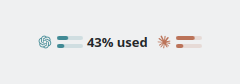
Use monochrome icons and meters only in Additional information selects Minimal and enables provider meters, including with a single provider, and hides panel names, usage text and credits. The style selector changes appearance alone. Existing installations keep their style, explicit quota choice, and visibility settings. Automatic meters gain the second quota without a new setting or additional CLI calls.
Provider tabs with usage bars, reset windows, account identity, status, and credits.
A plain credit balance has no allowance denominator and stays meter-free. A monthly Codex credit meter appears only when the CLI provides the validated
credits.codexCreditLimitrecord. Its limit never applies to a plain balance.Panel text modes for percent used or left, pace, usage plus pace, reset time, and a run-out forecast that shows the predicted duration only while the CLI expects the quota to run out before its reset.
Choose the automatic, primary, secondary, or tertiary quota for panel text and meters in Panel → Quota, order and visibility. An explicit primary, secondary, or tertiary choice shows one capsule. Automatic text and popup tabs retain their existing quota preference; automatic capsules use the pair described above.
Set independent visibility conditions for the full panel text and each provider meter: always, minimum percent used, reset within a chosen number of minutes, or forecast exhaustion before reset. A provider meter stays visible when either displayed quota meets its condition; both capsules remain together. Text uses its own displayed quota. Conditions respect existing visibility checkboxes and need no extra CLI calls. Missing data does not satisfy a condition. Reset conditions update each minute; the provider icon remains available when all conditional elements are hidden.
Auto-select highest-usage provider for the compact panel and provider detail focus.
Overview tab with per-provider usage summary and quick switching.
Overflowing popup tabs have separate scroll buttons and immediate keyboard focus reveal, so navigation never covers provider labels.
Global Usage & Spend tab with a Cost/Tokens selector, a 7/30/90-day range selector, interactive daily chart, activity heatmap, and provider totals that keep different currencies separate.
Local Sessions tab backed by
sessions --json-v2; transcript paths and working directories are never rendered or opened. The tab refreshes stale session data while it remains visible.Overview providers can be limited to a chosen set of up to 3 providers, or left automatic (the first 3 eligible providers).
Usage dashboard summaries for provider payloads that expose API spend, request, token, model, or dashboard fields through the CLI.
Declarative provider detail sections from the CLI
usage.detailscontract, including labeled rows, secondary values, and keyboard/pointer-inspectable bar/line charts.
Data freshness
Failed usage refreshes keep the last valid quotas visible. Each retained provider shows Last known usage with the age of its measurement in the popup and panel tooltip; its panel icon and capsules are dimmed. Errors remain visible. A partial refresh updates healthy providers independently, and a successful refresh removes the retained-data indication. Retained data never generates quota, pace, reset, or status notifications, and its run-out forecasts are suppressed. If a failed quota response includes newly fetched service status, that status still updates and can trigger incident notifications independently of the retained quotas. Failed refreshes stop reusing measurements older than 24 hours, and a quota measurement older than 24 hours never stamps a new snapshot as fresh. The existing minute timer also removes expired retained data when automatic refresh is disabled; the error remains visible and healthy providers are unaffected. Successful responses without measured quotas keep their valid credits or details even when their supplemental timestamp is old; they do not enter quota retention or expiry.
The widget automatically saves a small quota cache in its Plasma configuration. After a restart it verifies the CLI configuration fingerprint before restoring the cache, then refreshes in the background. Restored quotas are always marked last known, even if they were saved recently. A cache is not a successful refresh. If a partial refresh finishes before that verification, its results take precedence for the providers it returned. Other cached providers are restored as last known and included when the merged snapshot is saved.
The disk cache is limited to 64 KiB of UTF-8 on both save and restore. It holds at most 64 providers and only their primary, secondary, tertiary, and up to 24 extra quota windows per provider, with only percentages, reset timestamps, measurement timestamps, and an opaque configuration fingerprint. It contains no account identities, credentials, provider prose, cost history, session data, or paths. Entries older than 24 hours, future-dated entries, corrupt records, and unsupported cache versions are ignored. Supplemental sections (cost, credits, detail views, token costs) are hidden while usage is stale, including after cost refreshes and history-range changes, and are not restored from disk; only the retained quotas carry the last-known indication. A missing or future live measurement timestamp uses receipt time; future timestamps in persisted records are rejected. The 24-hour limit is a widget policy, not a guarantee that a retained quota remains accurate throughout that period.
Changing the CLI path, provider/source override, provider configuration, or selected account invalidates the affected retained data. A per-provider reset keeps healthy providers' disk cache; a full reset clears it. Disabling all providers clears the cached quotas. A confirmed successful response without a quota removes its previous value; measured zero remains zero. Privacy mode hides identities as usual and keeps the last-known indication visible.
Providers and accounts
Provider-specific editable settings depend on the official CLI contract.
- Search providers by name or ID and filter All, Enabled, or Disabled locally. Clear filters restores the list without changing selection or provider settings.
- Provider enable/disable and setup actions write CodexBar configuration immediately; Apply and Cancel cover widget settings only.
- Account discovery and selection through
codexbar usage --all-accounts. - Provider docs, dashboards, login/account links, and redacted diagnostics.
- With the official CLI 0.56.2 verified by this repository, the Providers page offers enable/disable, supported single API key setup, CLI command hints, and docs/dashboard/login links.
- The widget also has a renderer for the proposed provider settings descriptor. CLI 0.56.2 does not expose that contract, so source, cookie, base URL, workspace/project, region, and other descriptor-backed editors remain unavailable. They require upstream CLI support.
- Generic API key setup for Fireworks, when the selected CLI reports version 0.54.0 or later and can discover the account slug from the key.
- Fallback names, colors, links, aliases, and icons for all 69 providers in the official CodexBar 0.49.1 registry; fork-only provider assets remain available for compatibility.
Costs and history
- Local cost drill-down when the CLI exposes cost data.
- In the verified CLI 0.56.2 contract, Antigravity supplies token-only local history; its dollar amounts remain unavailable. Cursor local or dashboard cost is rejected by the Linux CLI. Other provider fields, including Kiro overage, z.ai BigModel CN balance, and Cursor Grok Bot usage, use the existing generic detail, provider-cost, and extra-window paths.
- A compact provider summary compares today with the selected period. Expand details for period models, history, and projects; cost warnings remain visible.
- Click a day in the provider chart or select it with the keyboard to see that day's model costs and tokens. Hover previews stay inside the chart, keeping the layout steady. The cost/token selector reuses the loaded data. Missing model breakdowns and truncated lists are identified explicitly.
- Local-history scans run independently from quota refreshes, automatically at most once per hour; the Usage & Spend refresh button starts one immediately.
- Token breakdowns, model summaries, recent daily spend, cost history bars, and average cost per 1M tokens, with a configurable cost history window.
- Token, request, and point counts use the current language's singular and
plural forms. Large counts retain compact notation such as
1Kand4.3B. - Cost totals qualified as estimated, partial, or approximate from the CLI's bounded pricing coverage and provenance metadata.
- Project cost and token totals in Usage & Spend, ranked within each provider by the selected metric and using the same history range. The official CLI 0.56.2 exposes project data for Codex. Missing amounts remain unavailable; project paths and nested source records are discarded. The bounded list signals omitted projects and does not change provider or global totals.
- Cost-trust notices explain why a range is incomplete or estimated. Closing a notice suppresses the same meaning for that provider or the aggregate Spend view across refreshes and popup reopenings; a materially different warning is shown again.
See Cost history for data bounds, selection rules, and evidence. Dashboard extras and additional history views require official CLI fields; track proposed extensions in the issue tracker.
Status and notifications
- Provider status incident badge in the panel and provider detail view. Incident selection, badges, banners, and tooltips ignore a provider whose current status is unknown or has no active incident. When a refresh omits status, a previously retained outage is hidden; this is not evidence of recovery. Current status can still report an incident when quota fetching fails.
- Optional quota warning markers on usage bars.
- Optional Plasma notifications for provider status incidents, configurable quota crossings, predicted quota exhaustion from CLI pace data, and when a heavily used limit resets back to empty.
Settings
- Six settings pages: General, Providers, Panel, Popup, Notifications, and Diagnostics. CLI path and provider/source overrides sit beside redacted diagnostics; quota thresholds sit beside their alerts.
- Panel starts with the preview, side-by-side Standard/Minimal choices, and provider meters. Additional information contains the selected provider's name, usage text, credit balance, and the monochrome preset. Its closed summary lists enabled information. Text format appears only when usage text is enabled; hiding controls preserves their selected values. These additions work in horizontal panels; meters also work in vertical panels.
- Quota, order and visibility expands the quota selector, element order, visibility conditions, and automatic provider selection. It starts collapsed whenever the page opens. Its summary lists non-default quota/order choices, configured conditions, and automatic selection even while collapsed. Opening or closing it never changes saved or pending preferences.
- A live Panel preview uses example data and the actual panel renderer. Try normal usage, near-limit usage, a service incident, or missing data before applying changes. The preview never fetches usage or changes saved settings.
- Optional General → Hide personal information hides account, organization, project, model and session names in the widget, its tooltips and new notifications. Free-form provider details are omitted; session copy actions are disabled. Stored data, existing clipboard contents and already-delivered notifications are unchanged. Provider setup and Diagnostics remain administrative surfaces.
- Optional General → Refresh when opening the popup refreshes stale quotas using the selected refresh interval, or five minutes with periodic refresh off. It does not scan local cost history; failed attempts use the same cooldown.
- Popup independently controls pace text/markers, credits/reset credits, and additional provider details/billing dashboards. These are visible by default; changing them does not refetch data or change panel metrics or alerts.
- A global, cancelable Restore all defaults action for user-facing widget settings; provider accounts and CodexBar CLI configuration are left intact.
- Usage refresh choices: no periodic refresh, 1 min, 2 min, 5 min, 15 min, or a custom interval. Provider service status remains opt-in.
- Configurable order for the provider identity, service status, usage text, and provider meters shown in the panel.
- Check for widget updates, notify when an update is available, and opt in to silent automatic widget installation.
Default settings
The defaults keep quota usage visible and reserve notifications for quota warnings and available updates. Percentages show used quota, matching the 80% warning and 95% critical thresholds. Reset notifications are off until enabled.
| Setting | Default |
|---|---|
| Command and provider source | codexbar from PATH; no provider or source override |
| Usage refresh | Every 5 minutes |
| Refresh on popup opening / privacy mode | Off |
| Popup pace, credits and additional details | Shown |
| Provider service status | Off; incident notifications become active when status fetching is enabled |
| Local usage and spend history | On, 30 days, cost metric |
| Quota display | Percent used; warning markers on; thresholds at 80% and 95% used |
| Plasma notifications | On; quota warnings on; predicted exhaustion and limit-reset notices off |
| Widget updates | Check and notify every 24 hours; automatic installation off |
| Panel appearance | Standard style with colored provider icons and automatic quota capsules, including a single provider |
| Extra panel content | Provider names, usage text and credit balances off |
| Panel element order | Default grouping of selected text with its meters; custom orders retain separate elements |
| Panel quota and visibility | Automatic quota pair for meters and automatic text quota; enabled elements always visible |
| Provider selection | Keep the selected provider; automatic highest-usage selection off |
| Popup navigation | Tab text labels on; provider order from the CLI |
| Overview | First three enabled providers automatically |
| Reset times | Relative countdown |
| Provider changelog links | Off |
These values apply to new widgets and settings without a stored override. Existing stored choices take precedence. General → Restore all defaults prepares these values for an existing widget; select Apply or OK to save them, or Cancel to keep its settings. Provider accounts and CLI configuration are not reset.